Showing posts with label collaboration architecture. Show all posts

Saturday, April 24, 2021

Chrome and Tab Groups: Where the heck am I?

Task Context Switching 

If you're like me (and why wouldn't you be? come on!) you've got a lot of tabs open in Google Chrome. Like, an unsettling amount - enough to make your memory paging system go "Hol' up". 


I like to organize my browser so I have separate Chrome windows that represent a task context. 

For example, currently I have separate Chrome windows dedicated to: 
  1. A code change associated with a work ticket around some performance improvements. I have a spreadsheet on there for tracking timing changes, a few tabs for some associated research, and a few tabs for watching our metrics system.
  2. Articles I want to read unassociated with any active work tickets. I park "this looks interesting and I want to get to it soon™" articles there.
  3. A presentation that I'm working on, with a tab for the actual presentation and another tab for some survey results from anonymous questions I'm asking.
  4. Et cetera, et cetera, et cetera
This system works well for me, but it can provide some tough context switches, when I go from Task A to Task B, I have to hunt through my current 11 (yes 11!) Chrome windows to find the right context, so I can work on my task.

what follows is an ACTUAL screen shot. Feel my pain.

Context switching means looking at each window in turn, and trying to figure out what task context that window is dedicated to by tab titles. Easy to do once, but omg, try doing it dozens of times a day.

I want to make this process easier, so context switches require less effort.

All Hail Chrome Tab Groups

Chrome Tab Groups are a relatively new feature where you can take one or more tabs and associate them with a label. It's pretty easy to use, with a right mouse click and a little bit of typing. The linked blog is the best introduction and guide.

When I create a new Chrome window with a set of tabs, I will associate the leftmost tab with a Tab Group and give it a short name so I understand the context quickly.

For instance:

You probably don't know what wi2524860 (dms load means, but I do. When I want to work on that task, I can quickly loop through my Chrome windows, and, by keeping my eye on the upper left corner, find the right window to bring into focus.

Bonus Points

Windows 7 introduced a great application shortcut key feature, where the Windows Logo key + a number will switch to that number program pinned to the taskbar. 

If you're like me and have Chrome pinned as task 1, you can hold down the Windows Logo key and repeatedly press 1 to cycle through your windows, looking for the correct task using the tab group label.

Anybody that's been in a meeting with me (may the Lord have mercy on your soul), has probably noticed me doing this at the beginning of a meeting, where I will say "no, no, no, no, yes" as I find the right window. I'm sorry you had to listen to that, but here we are.

Conclusion

Anyway, it's a minor efficiency thing, but whatever we can do to save those precious, precious seconds. Thanks.


Saturday, May 2, 2020

Little Metrics: Providing Observability in our Projects


Everybody reading this should be familiar with the concept of taking your temperature. When you don't feel well, you (or Mom or Dad) pop a thermometer into your mouth, wait a few seconds, and then take a look. If you're above 98.6° F (37° C, 310.15 K, ...), you may have an infection. Note: I'm not a Doctor (but I play one on this blog).

Recording your temperature is a "little metric" around making a quick judgement around your health, and it's effortless to collect. Well, possibly not effortless for parents of toddlers (I remember those dark days), but you get the idea.

Like taking your body's temperature, we should be able to find and record some effortless "little metrics" around our software projects to make judgements about their health. This is especially true around any project that is:

  • taking more than some tiny number of iterations. 
  • split up into many tasks.
  • worked on by multiple developers.

We demand observability (one of the core -ilities) for the execution of our software, using logging libraries and monitoring services. We should also demand observability on the health of our development efforts, and present that observability in a way that everybody, from individual contributors to C-suite executives, can easily understand.

I'm deliberately wishy-washy about when to apply "little metrics". You'll know where you need it.

My "little metrics rules":
  1. The little metrics collected should be an easy concept for everybody to understand.

    A common example is number of work items (tickets) total for a project, number that are closed, and number that are active. Collecting these metrics requires everybody to be good work item citizens and follow the rules on work sizing and not reopening closed work.

    Other good examples of little metrics are cost, performance (how fast to do the thing(s)), and scalability (how many things are supported simultaneously before the system goes pear shaped).
  2. The little metrics should be small in number.

    If you start collecting and reporting 10 numbers for a project, my eyes are going to start glazing over and thinking about potato chips before you're done. 3-5 numbers sound good.
  3. Collection of the little metrics should be effortless.

    Clicking two urls is good. Clicking one is double plus good.

    The urls should show results in less than 5s. Any more, and you've lost my attention.
  4. Collection of the little metrics should use your source of truth.

    Think about where your source of truth is for tracking the work to be done. Use that. Any use of a denormalized copy of that data (like in an external spreadsheet) will be outdated as soon as you hit File > Save.
  5. Collection of the little metrics should be done in a ceremonial fashion.

    While it's great to collect these metrics via robot, incorporate their collection in your meetings, so that everybody can witness them getting collected. Playing music with their collection is optional.

    Collect and show their graphing over time (the next step) to everybody in your ceremonies simultaneously, and take a short amount of time to speak to what they mean.
  6. The little metrics should be recorded and graphed over time.

    Work tracking systems are great at showing the current state of things. What you want to see is how project health is progressing over time. Every stakeholder, from individual contributor to executive, should be able to easily see these graphs, and understand what they mean.

    If you can record these metrics and graph them over time in your work tracking system, great. If you need to copy them into a spreadsheet, that's fine too. As you're capturing the health state at a point in time, you don't risk outdated data listed in rule 4 above, because changes to the future state don't affect what is happening right now.

    In the example of total, closed, and active, it's very interesting to see a graph like this.

    but you can slice it or dice it however you want: percentages, lines towards 0 (project completion), break out active work as a separate graph, etc. Whatever is most useful to the stakeholders to gauge the "temperature" of a project.

    If total work is growing over time, then the project isn't properly scoped yet (not a pejorative - growth is bound to happen, as the unknown unknowns become known). If closed work stays flat over time, then you can see if you've got enough resources on the project. There's a ton more to be written here, and way out of scope for this blog post.
  7. The little metrics should NOT BE WEAPONIZED.

    I'm 100% serious here. This observability on the state of our projects should be collected and presented in a judgement free manner. This is using data to determine project health. Projects that need love and attention should get love and attention to get them back on track.
I see a lot of metrics in my day to day that can be hard to digest what they really mean - think "can't see the forest for the trees". I'm a firm believer that having a system like these 7 rules in place around project observability will help tremendously in building a shared understanding project health, which further fosters a collaborative development culture.

Wednesday, April 29, 2020

Hosting a Teams Live Event

In these pandemic times with mass WFH (work from home), it is becoming more and more important to understand how to host online events. Physical audiences are turning into virtual audiences, spread throughout the world.

Microsoft Teams is a communication and collaboration platform that supports peer to peer video conferencing of up to 250 participants. For larger events, up to 10,000 attendees as of this writing, you can use Teams Live Events.

This is a guide to a practical use of Teams Live Events to host your own large event. From my own experience, I will describe what went well and what could go better for future Teams Live Events. This will be a blog post chock full of links & screen shots.

NOTE: Before executing a Teams Live Event, please make sure that running one and writing about it afterwards does not run against your internal company policies on using new technology by consulting with whatever group claims ownership. Internal compliance to standards is a bellwether of a healthy organization.

Every teams live event is segmented into 3 types of users:
  1. Producers get to control what content (PowerPoint presentation) and what webcam feed (if any) gets shown to the attendees. Producers can be Presenters as well (I was a Presenter as well as a Producer).
  2. Presenters get to speak about the content.
  3. Attendees can only listen, and, if the meeting is configured for it, ask questions through the Q&A panel. Because the live event is recorded and buffered, attendees may be witnessing the content at different points in time, and not be in "real time".

To create a Teams Live Event
  1. Launch Teams (web or exe) and visit Calendar.
  2. New Live Event from the upper right corner UI
  3. Fill out the first page for the live event. Pick Presenters from the Invite presenters UI on the right. You can make people Producers here, which may be nice to have as a backup, but too many cooks...
    Press Next
  4. Fill out the second page. I prefer "Org-wide", but I think you can segment this where only specific people are attendees.
    I also like checking "Q&A" to enable attendees to send questions, and filling out a Support url,

    Press Schedule. Your Presenters and Producers that are not you will get the email invite.
  5. Click on the created Calendar invite in Teams. You'll see a "Get attendee link". Copy that and communicate that url to attendees by whatever means you want (outlook meeting, internal company social media post, cleverly crafted interpretive dance with QR codes, ...)


    as these urls are long & ugly, I really like using the "CTRL+K" insert link feature to add them to outlook or your internal company social media system, and to create some nice human readable display text. People like seeing something like chickens with pants | google vs a huge wall of url text that causes content to scroll off the bottom.
Done - you've now scheduled your event

Make sure to do "dry runs" of the live event with your other producers and presenters AND SOME VOLUNTEER TEST ATTENDEES, so you develop a good flow. Creating multiple live events leading up to the real deal is, as far as I know, free and easy to do. Practice makes perfect.

On the day of the Live Event

  1. You can either create a separate "green room" teams meeting for last minute coordination with the other producers and presenters, or you could probably use the live event as a means of coordination.

    As producers and presenters join the Teams Live Event, they can speak with each other, but attendees cannot hear them until they press the magic "Start Live" button.
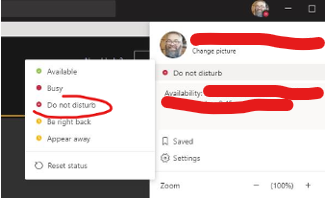
  2. Remove distractions. Mark yourself Do Not Disturb in Teams. Close outlook. Power down Alexa.

To start & run the Live Event
  1. The Producer should start the PowerPoint presentation. I'd recommend a multi monitor configuration, where you have monitors, from left to right of:
    1. Presenter View for slide deck - the one that shows presenter notes, the next slide coming up, etc.

    2. Teams Live Event view - this is where the Producer will send Presenters live, and control what content shows.

    3. Slide show view - this will be the content you send to the Live Event
      Control that monitor here:
    4. The Producer wants this monitor configuration because you'll be mousing back and forth to the Teams Live Event view and picking Presenters to place in Queue & to send Live. The less distance you have to traverse, the easier. Trust me.
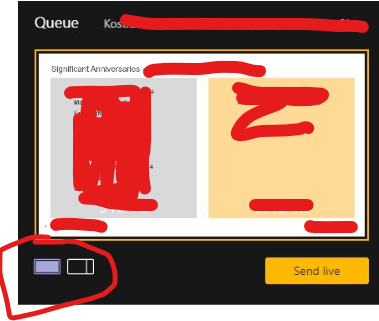
  2. The Producer makes a choice of displaying either just a presentation, or a presentation and a video feed by picking from this UI under the yellow "Queue" window.
  3. The Producer will share the presentation by picking "Share" in the lower right corner, and then choosing the Slide show (NOT the presenter view). Select the Content with your mouse in the yellow Queue window, and pick the Content of what you're sharing

    If you want to queue a video feed of a presenter, you can do the same. Click the right hand side video feed in the yellow Queue window, and then click a Presenter or Producer.
  4. Click Send live and then Start Live on the live event. You're live to your attendees!
  5. What shows on the right hand side window for the Live event is what attendees see.
  6. The Producer moves through the slide show, and places speakers and content in Queue, by clicking at the appropriate place on the left hand yellow Queue window and then clicking on Presenters or Producers below.

    Move a Presenter to the live event by Queue'ing them and then pressing "Send live"

    I'd recommend sticking with a single piece of shared Content for an entire live event. It's a bit awkward to stop content and reshare new content. 
  7. All Producers and Presenters have their audio playing on the live event, so MUTE YOURSELF IF YOU ARE NOT PRESENTING.

    Use the attendee chat to do coordination with presenters and producers. Watch that key clicks don't go in the audio feed (more muting!)
  8. If a Presenter has bad internet and wants to use a dial in number, that is an option.
  9. Somebody should monitor the Live event Q&A and field questions, promoting them from New to Published or Dismissed as appropriate.
  10. Lather, rinse, repeat 
  11. Press "End" to stop the Live Event. Once stopped, it cannot be restarted.
  12. High fives, you're done
After the Teams Live Event
  1. Visit the Teams Calendar event again to download a copy of the Recording (mp4, you can upload to microsoftstream.com), Q&A report, Attendee engagement report, etc.
  2. The attendee engagement report will have an entry for each attendee for each join, so if internet blocks some attendees & they drop, you'll see them join multiple times.
What could have gone better
  1. We wanted to have intro and exit music and some funny videos. Teams doesn't yet support routing PowerPoint audio as input to the Teams Live Event audio feed. I'm sure we could get some 3rd party software to create a fake audio input device that would "wrap" a microphone and audio out.

    Instead, the Producer (me!) leaned his head down next to the speakers so his microphone picked up the audio. For real.
  2. One of the Presenters kept losing webcam feed, so the Producer had to re-queue their webcam as it came back. Luckily, audio was not lost, so this was probably not noticed by anybody.
  3. As producer, seriously, watch the monitor configuration (details above). The less mouse gymnastics around queueing content and presenters, the better.

Friday, April 3, 2020

How I work

In no order, and in a list that will be augmented over time, here's some best practices that I've developed for work. This is tech heavy.

YMMV. No animals were harmed in the creation of this list.


  1. If you are bored doing a thing, go do a different thing.
  2. Microsoft OneNote is your friend. It should be always open on every computer you use and you should be effortless with its usage.
    1. Assign a Windows HotKey to OneNote. Windows+7 (lucky number) gets me there on every computer I own.
    2. Create a diary tab. Every day gets a diary page in that tab, which will have cruddy notes about what you're working on. 
    3. Do NOT curate your diary entires. Write it and walk away. Curation is a suckers game here and you will lose; The idea is just to write something down as you're doing it.
    4. Create a contacts tab. That's where you list who you know & what they do.
    5. Create a TODO tab. This contains checkbox lists of parked things that YOU and YOU ALONE are working on. Check the boxes as the jobs get done. It should be effortless to add a TODO.
    6. My TODO tab has 2 pages, one for personal TODO and one for subjects I need to discuss with my supervisor that do not require immediate attention.
    7. Create an interview tab for notes during interviews, duh.
    8. Other tabs for more significant projects that you're working on, pages in those tabs. 
    9. OneNote is designed to be a hot garbage mess of your thoughts. It's ok.
  3. Tasks that require collaboration or more ceremony should be thoughtfully put into whatever task tracking system you use. We use Azure DevOps. Others do not.
  4. While trite, "Be the change you wish to see". Seriously. Complaining = volunteering to own a problem.
  5. Everything is absurd.
  6. Make a good playlist for getting stuff done. Here is mine.
  7. Allocate an hour of time a week to go over your backlog of work. Block it on your calendar and don't let anybody schedule over it. This is time for you to go over any personal or group tasks and curate them - is it really active? is the language precise about what needs to be done? We're not writing Tolstoy, but collaborative tasks should be written in a way that all stakeholders can understand them.
  8. Going from 0 to 1 is hard. Going from 1 to 2 is easy. Better to get something written and iterate towards better than wait until the initial delivery is perfect.
  9. Do you work out loud and model good behavior for those around you.
  10. In computer programming, there is no magic. Everything happens deterministically for a reason. That reason can be highly complex, but is not magic.
  11. Eat your own dog food. Use the tools you create, so you can make them better.  
  12. "Make the space better for me having been there". Every time I edit a file to make a change, I see if there's other work that I can do that would be safe but make the file a little bit better - better comments, more tests, etc. See safe refactoring rules.  
  13. Everybody's time is precious. Remember your "pleases" and "thank you's". Politeness is a sign of a well functioning social order.  

Saturday, March 14, 2020

On Prioritization: Your Team Structure Articulates Your Goals

Of the three legged stool that defines the controllable outputs of development of a software system
  • Features
  • Performance
  • Stability
it's self evident that everything comes at a cost; you have to employ prioritization to determine what gets the most focus.

More time spent on features equals less time spent on performance and stability, and vice-versa.

Imagine having a development team that has 1,000 hours of capacity. How do you split the time? 333 1/3 hours per output? Are you feature driven: 600 hours spent on features, 350 on performance and 50 on stability?

Everything is a choice.

Note, I'm specifically avoiding what might be called Engineering as a controlled output. Mostly, customers don't directly notice Engineering - they can't tell if my interfaces are clean, if I'm employing a single responsibility principle, or my code is a spaghetti mess of variables named x1, x2, x3, ... x999 looking like it was produced by a poorly written minifier.

Certainly Engineering is indirectly noticed, as poorly Engineered software requires more resources to add Features, is less likely to be Stable, etc. That frequently manifests over the software system's lifetime.

So, we have our software system, and we've made our choices about who is working on what, and for how much time.

Easy peasy, right?

Maybe. Maybe not. There are other inputs to this problem. 

Regardless of the time allocation, how have you segmented your development teams? 

If your teams are aligned around a Feature, they're going to have a Feature mindset. They will communicate with other teammates about Feature implmentation. Regardless of direction around resource allocation, Features will be artifically weighted.

I'm being delibarately provocotive here. Many of us, myself included, are used to teams with Feature segmentation. For developing a software system of any complexity, it just makes sense - separate into feature based bounded contexts, and throw a team on each context.

I challenge myself to not default to that muscle memory way of team creation, and to be considerate to organizational structure when laying out goals.