Showing posts with label technology. Show all posts

Monday, May 30, 2022

Voight-Kampff Test

In case anybody struggles with phone solicitiers and identity validation, I have taken the time to create a Voight-Kampff test to apply before continuing with the call.


This will be printed out, placed in a protective binder and hung by our phone so the entire Kostrzewa family can participate in the evaluation.


https://docs.google.com/document/d/e/2PACX-1vSYr6TcpA-RdjLbusNEy1YfM9MGN4S3VyXTcAYLLf_zDMwR0teck2EnWYzmqcFXtDpkMAG3VMxJgvkJ/pub

Friday, May 20, 2022

Fiddler + EXE + localhost server

(a friend was asking about this one, so here's a repost / rewrite of a previous blog from 2014-12-03, back when Visual Studio 2012 was state of the art)

Capturing fiddler traffic between a local EXE and a web server running on localhost turned out to be a little more difficult than I originally imagined. I tried to set my server to localhost or 127.0.0.1 while my local EXE had a proxy through fiddler (localhost:8888), but some/most/many/mine web requests appear to skip proxies when going to a local address.

To get this done:

    1. Run fiddler (Download Fiddler Web Debugging Tool for Free by Telerik), make sure "File / Capture Traffic" is checked.
    2. Make sure fiddler's filters show traffic to localhost.fiddler

      I also like to Hide if URL contains /arterySignalR, which is a special endpoint that IIS express/Visual Studio will use on localhost for debugging. It can generate a lot of noise in fiddler.

      See below for a screen cap of my fiddler filter settings.
    3. Start your web server on localhost
    4. Reconfigure your EXE's target server to point to http://localhost.fiddler:>PORT< 
      This will be EXE specific.
      (note, >PORT< depends on the server you're running and what port it binds to)
    5. Start your EXE
    6. Make sure your EXE's proxy is pointing to localhost:8888, so all traffic goes through fiddler.

    Here's my current fiddler filter settings


    Thursday, May 13, 2021

    PTSD Reduction: Microsoft Teams on Mobile

    I get a lot of notification on Microsoft Teams on my Android mobile device. A LOT. To reduce my PTSD, I've made the following changes today

    1. Launch Teams & press your cute photo in the upper left corner. Press Settings
    2. Notifications
    3. General activity

    4. I'm going to change the sound for Channels, Chats, Mentions and turn off the sound for Reactions. Press those links
    5. I'm liking the "Chaos" sound, as that's shorter than the default sound.
    6. I made the Reactions sound silent, as I don't care how many "Likes" I get. Ok, maybe I do care. You like me, you really like me!
    Look, kpk is already 20% happier! You can too!

    Saturday, April 24, 2021

    Chrome and Tab Groups: Where the heck am I?

    Task Context Switching 

    If you're like me (and why wouldn't you be? come on!) you've got a lot of tabs open in Google Chrome. Like, an unsettling amount - enough to make your memory paging system go "Hol' up". 


    I like to organize my browser so I have separate Chrome windows that represent a task context. 

    For example, currently I have separate Chrome windows dedicated to: 
    1. A code change associated with a work ticket around some performance improvements. I have a spreadsheet on there for tracking timing changes, a few tabs for some associated research, and a few tabs for watching our metrics system.
    2. Articles I want to read unassociated with any active work tickets. I park "this looks interesting and I want to get to it soon™" articles there.
    3. A presentation that I'm working on, with a tab for the actual presentation and another tab for some survey results from anonymous questions I'm asking.
    4. Et cetera, et cetera, et cetera
    This system works well for me, but it can provide some tough context switches, when I go from Task A to Task B, I have to hunt through my current 11 (yes 11!) Chrome windows to find the right context, so I can work on my task.

    what follows is an ACTUAL screen shot. Feel my pain.

    Context switching means looking at each window in turn, and trying to figure out what task context that window is dedicated to by tab titles. Easy to do once, but omg, try doing it dozens of times a day.

    I want to make this process easier, so context switches require less effort.

    All Hail Chrome Tab Groups

    Chrome Tab Groups are a relatively new feature where you can take one or more tabs and associate them with a label. It's pretty easy to use, with a right mouse click and a little bit of typing. The linked blog is the best introduction and guide.

    When I create a new Chrome window with a set of tabs, I will associate the leftmost tab with a Tab Group and give it a short name so I understand the context quickly.

    For instance:

    You probably don't know what wi2524860 (dms load means, but I do. When I want to work on that task, I can quickly loop through my Chrome windows, and, by keeping my eye on the upper left corner, find the right window to bring into focus.

    Bonus Points

    Windows 7 introduced a great application shortcut key feature, where the Windows Logo key + a number will switch to that number program pinned to the taskbar

    If you're like me and have Chrome pinned as task 1, you can hold down the Windows Logo key and repeatedly press 1 to cycle through your windows, looking for the correct task using the tab group label.

    Anybody that's been in a meeting with me (may the Lord have mercy on your soul), has probably noticed me doing this at the beginning of a meeting, where I will say "no, no, no, no, yes" as I find the right window. I'm sorry you had to listen to that, but here we are.

    Conclusion

    Anyway, it's a minor efficiency thing, but whatever we can do to save those precious, precious seconds. Thanks.


    Thursday, March 25, 2021

    power(shell), corruption & lies: Building command line arguments

    I hate typing long command lines to command line utilities. Invariably I will get one obscure path wrong and spend an hour with a copy / pasted command line in notepad to split out the components and figure out what I screwed up this time.

    A lot of those long typing jobs have to do with feeding a bunch of file or directory names to an .exe

        foo_the_bar.exe --blort first\dir second\dir third\dir hey\heres\a\filename.txt

    If I only had a tool that I could use to generate that list of directories and filenames.

    powershell and Invoke-Expression (iex to it's friends) to the frickin' rescue.

    1. Write a powershell expression using Get-ChildItem (gci), Where-Object (?) and Select-Object (select) to build your list of things. Use -join ' ' to space separate the list of things

      PS c:\users\kpk> (gci c:\my\dir -recurse | ?{ $_.FullName -match 'some.*criteria$' } | select -expand FullName) -join ' '

    2. Use string interpolation to embed that expression with the name of the .exe you want to run. In my case, I was using cloc to (duh) Count Lines Of Code.

      PS c:\users\kpk> "cloc $((gci c:\my\dir -recurse | ?{ $_.FullName -match 'some.*criteria$' } | select -expand FullName) -join ' ')"

    3. Run that expression a few times to make sure you're happy with it. Add some command line arguments as needed.
    4. Use iex (Invoke-Expression) to run that beautiful mess.

    Let's unpack the expression a bit

        PS c:\users\kpk> (gci c:\my\dir -recurse | ?{ $_.FullName -match 'some.*criteria$' } | select -expand FullName) -join ' '

    1. gci c:\my\dir -recurse |

      gci (Get-ChildItem) recurses through a directory structure. It's more complicated than that, but things often are.

    2. ?{ $_.FullName -match 'some.*criteria$' } |

      ? (Where-Object) will test each produced file & directory for a criteria. In this case, a regular expression. Only the worthy shall pass.

    3. select -expand FullName

      select (Select-Object) extracts the FullName property from the produced collection of objects and expands it to a list

    4. -join ' '

      I need that list turned into a single flattened string with space separation, because cloc wants space separation. Other command line utilities want other kind of formatting (prefixed by a magic argument, comma separated, etc.). -join's your friend here.
    Once all of this is looking good, and you've prefixed it with the name of the command you want to run, iex takes care of the rest.

    Never let a human do a job that a robot can do better. Ok, maybe not 'Never', but mostly. Sometimes.... Whatever.

    Wednesday, April 29, 2020

    Hosting a Teams Live Event

    In these pandemic times with mass WFH (work from home), it is becoming more and more important to understand how to host online events. Physical audiences are turning into virtual audiences, spread throughout the world.

    Microsoft Teams is a communication and collaboration platform that supports peer to peer video conferencing of up to 250 participants. For larger events, up to 10,000 attendees as of this writing, you can use Teams Live Events.

    This is a guide to a practical use of Teams Live Events to host your own large event. From my own experience, I will describe what went well and what could go better for future Teams Live Events. This will be a blog post chock full of links & screen shots.

    NOTE: Before executing a Teams Live Event, please make sure that running one and writing about it afterwards does not run against your internal company policies on using new technology by consulting with whatever group claims ownership. Internal compliance to standards is a bellwether of a healthy organization.

    Every teams live event is segmented into 3 types of users:
    1. Producers get to control what content (PowerPoint presentation) and what webcam feed (if any) gets shown to the attendees. Producers can be Presenters as well (I was a Presenter as well as a Producer).
    2. Presenters get to speak about the content.
    3. Attendees can only listen, and, if the meeting is configured for it, ask questions through the Q&A panel. Because the live event is recorded and buffered, attendees may be witnessing the content at different points in time, and not be in "real time".

    To create a Teams Live Event
    1. Launch Teams (web or exe) and visit Calendar.
    2. New Live Event from the upper right corner UI
    3. Fill out the first page for the live event. Pick Presenters from the Invite presenters UI on the right. You can make people Producers here, which may be nice to have as a backup, but too many cooks...
      Press Next
    4. Fill out the second page. I prefer "Org-wide", but I think you can segment this where only specific people are attendees.
      I also like checking "Q&A" to enable attendees to send questions, and filling out a Support url,

      Press Schedule. Your Presenters and Producers that are not you will get the email invite.
    5. Click on the created Calendar invite in Teams. You'll see a "Get attendee link". Copy that and communicate that url to attendees by whatever means you want (outlook meeting, internal company social media post, cleverly crafted interpretive dance with QR codes, ...)


      as these urls are long & ugly, I really like using the "CTRL+K" insert link feature to add them to outlook or your internal company social media system, and to create some nice human readable display text. People like seeing something like chickens with pants | google vs a huge wall of url text that causes content to scroll off the bottom.
    Done - you've now scheduled your event

    Make sure to do "dry runs" of the live event with your other producers and presenters AND SOME VOLUNTEER TEST ATTENDEES, so you develop a good flow. Creating multiple live events leading up to the real deal is, as far as I know, free and easy to do. Practice makes perfect.

    On the day of the Live Event

    1. You can either create a separate "green room" teams meeting for last minute coordination with the other producers and presenters, or you could probably use the live event as a means of coordination.

      As producers and presenters join the Teams Live Event, they can speak with each other, but attendees cannot hear them until they press the magic "Start Live" button.
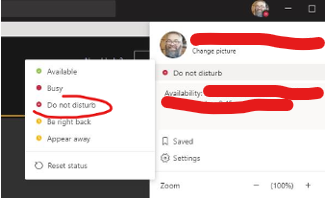
    2. Remove distractions. Mark yourself Do Not Disturb in Teams. Close outlook. Power down Alexa.

    To start & run the Live Event
    1. The Producer should start the PowerPoint presentation. I'd recommend a multi monitor configuration, where you have monitors, from left to right of:
      1. Presenter View for slide deck - the one that shows presenter notes, the next slide coming up, etc.

      2. Teams Live Event view - this is where the Producer will send Presenters live, and control what content shows.

      3. Slide show view - this will be the content you send to the Live Event
        Control that monitor here:
      4. The Producer wants this monitor configuration because you'll be mousing back and forth to the Teams Live Event view and picking Presenters to place in Queue & to send Live. The less distance you have to traverse, the easier. Trust me.
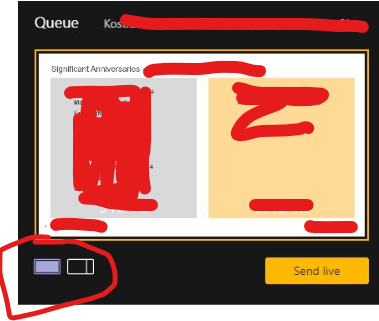
    2. The Producer makes a choice of displaying either just a presentation, or a presentation and a video feed by picking from this UI under the yellow "Queue" window.
    3. The Producer will share the presentation by picking "Share" in the lower right corner, and then choosing the Slide show (NOT the presenter view). Select the Content with your mouse in the yellow Queue window, and pick the Content of what you're sharing

      If you want to queue a video feed of a presenter, you can do the same. Click the right hand side video feed in the yellow Queue window, and then click a Presenter or Producer.
    4. Click Send live and then Start Live on the live event. You're live to your attendees!
    5. What shows on the right hand side window for the Live event is what attendees see.
    6. The Producer moves through the slide show, and places speakers and content in Queue, by clicking at the appropriate place on the left hand yellow Queue window and then clicking on Presenters or Producers below.

      Move a Presenter to the live event by Queue'ing them and then pressing "Send live"

      I'd recommend sticking with a single piece of shared Content for an entire live event. It's a bit awkward to stop content and reshare new content. 
    7. All Producers and Presenters have their audio playing on the live event, so MUTE YOURSELF IF YOU ARE NOT PRESENTING.

      Use the attendee chat to do coordination with presenters and producers. Watch that key clicks don't go in the audio feed (more muting!)
    8. If a Presenter has bad internet and wants to use a dial in number, that is an option.
    9. Somebody should monitor the Live event Q&A and field questions, promoting them from New to Published or Dismissed as appropriate.
    10. Lather, rinse, repeat 
    11. Press "End" to stop the Live Event. Once stopped, it cannot be restarted.
    12. High fives, you're done
    After the Teams Live Event
    1. Visit the Teams Calendar event again to download a copy of the Recording (mp4, you can upload to microsoftstream.com), Q&A report, Attendee engagement report, etc.
    2. The attendee engagement report will have an entry for each attendee for each join, so if internet blocks some attendees & they drop, you'll see them join multiple times.
    What could have gone better
    1. We wanted to have intro and exit music and some funny videos. Teams doesn't yet support routing PowerPoint audio as input to the Teams Live Event audio feed. I'm sure we could get some 3rd party software to create a fake audio input device that would "wrap" a microphone and audio out.

      Instead, the Producer (me!) leaned his head down next to the speakers so his microphone picked up the audio. For real.
    2. One of the Presenters kept losing webcam feed, so the Producer had to re-queue their webcam as it came back. Luckily, audio was not lost, so this was probably not noticed by anybody.
    3. As producer, seriously, watch the monitor configuration (details above). The less mouse gymnastics around queueing content and presenters, the better.

    Friday, April 3, 2020

    Zoom resources

    Available to the public

    Labelling as alcohol, because zoom is where I'm meeting friends for drinks during Covid 19.

    How I work

    In no order, and in a list that will be augmented over time, here's some best practices that I've developed for work. This is tech heavy.

    YMMV. No animals were harmed in the creation of this list.


    1. If you are bored doing a thing, go do a different thing.
    2. Microsoft OneNote is your friend. It should be always open on every computer you use and you should be effortless with its usage.
      1. Assign a Windows HotKey to OneNote. Windows+7 (lucky number) gets me there on every computer I own.
      2. Create a diary tab. Every day gets a diary page in that tab, which will have cruddy notes about what you're working on. 
      3. Do NOT curate your diary entires. Write it and walk away. Curation is a suckers game here and you will lose; The idea is just to write something down as you're doing it.
      4. Create a contacts tab. That's where you list who you know & what they do.
      5. Create a TODO tab. This contains checkbox lists of parked things that YOU and YOU ALONE are working on. Check the boxes as the jobs get done. It should be effortless to add a TODO.
      6. My TODO tab has 2 pages, one for personal TODO and one for subjects I need to discuss with my supervisor that do not require immediate attention.
      7. Create an interview tab for notes during interviews, duh.
      8. Other tabs for more significant projects that you're working on, pages in those tabs. 
      9. OneNote is designed to be a hot garbage mess of your thoughts. It's ok.
    3. Tasks that require collaboration or more ceremony should be thoughtfully put into whatever task tracking system you use. We use Azure DevOps. Others do not.
    4. While trite, "Be the change you wish to see". Seriously. Complaining = volunteering to own a problem.
    5. Everything is absurd.
    6. Make a good playlist for getting stuff done. Here is mine.
    7. Allocate an hour of time a week to go over your backlog of work. Block it on your calendar and don't let anybody schedule over it. This is time for you to go over any personal or group tasks and curate them - is it really active? is the language precise about what needs to be done? We're not writing Tolstoy, but collaborative tasks should be written in a way that all stakeholders can understand them.
    8. Going from 0 to 1 is hard. Going from 1 to 2 is easy. Better to get something written and iterate towards better than wait until the initial delivery is perfect.
    9. Do you work out loud and model good behavior for those around you.
    10. In computer programming, there is no magic. Everything happens deterministically for a reason. That reason can be highly complex, but is not magic.
    11. Eat your own dog food. Use the tools you create, so you can make them better.  
    12. "Make the space better for me having been there". Every time I edit a file to make a change, I see if there's other work that I can do that would be safe but make the file a little bit better - better comments, more tests, etc. See safe refactoring rules.  
    13. Everybody's time is precious. Remember your "pleases" and "thank you's". Politeness is a sign of a well functioning social order.  

    Saturday, March 14, 2020

    On Prioritization: Your Team Structure Articulates Your Goals

    Of the three legged stool that defines the controllable outputs of development of a software system
    • Features
    • Performance
    • Stability
    it's self evident that everything comes at a cost; you have to employ prioritization to determine what gets the most focus.

    More time spent on features equals less time spent on performance and stability, and vice-versa.

    Imagine having a development team that has 1,000 hours of capacity. How do you split the time? 333 1/3 hours per output? Are you feature driven: 600 hours spent on features, 350 on performance and 50 on stability?

    Everything is a choice.

    Note, I'm specifically avoiding what might be called Engineering as a controlled output. Mostly, customers don't directly notice Engineering - they can't tell if my interfaces are clean, if I'm employing a single responsibility principle, or my code is a spaghetti mess of variables named x1, x2, x3, ... x999 looking like it was produced by a poorly written minifier.

    Certainly Engineering is indirectly noticed, as poorly Engineered software requires more resources to add Features, is less likely to be Stable, etc. That frequently manifests over the software system's lifetime.

    So, we have our software system, and we've made our choices about who is working on what, and for how much time.

    Easy peasy, right?

    Maybe. Maybe not. There are other inputs to this problem. 

    Regardless of the time allocation, how have you segmented your development teams? 

    If your teams are aligned around a Feature, they're going to have a Feature mindset. They will communicate with other teammates about Feature implmentation. Regardless of direction around resource allocation, Features will be artifically weighted.

    I'm being delibarately provocotive here. Many of us, myself included, are used to teams with Feature segmentation. For developing a software system of any complexity, it just makes sense - separate into feature based bounded contexts, and throw a team on each context.

    I challenge myself to not default to that muscle memory way of team creation, and to be considerate to organizational structure when laying out goals. 

    Sunday, March 8, 2020

    Effective Online Meetings

    As more employers are contemplating work from home due to concerns around spreading coronovirus, I want to share some of my random throughts around how to have an effective online meeting, regardless of underlying technology (Microsoft Teams, Cisco Webex, Zoom, etc.)

    I've been primarily working from home for the past 13 years, so I've gotten a lot of practical experience.

    1. Use your camera (assuming bandwidth supports it). It's better to see faces and pick up on the nonverbal cues that we use for communication.
    2. Mute and unmute quickly. This will limit background noise and allow the speaker to be more focused. My tech (Microsoft Teams) has a software mute button, but I prefer the hardware mute button on my headset, because I can quickly press it, share my thoughts, and then mute myself without much effort of reaching for the mouse. 
    3. Keep it light. Meetings are less effective when people go in scared to contribute. I like to start things off light (a couple of bad dad jokes maybe), introductions to participants that I don't know or don't know each other, and then try to get into a groove of productivity.
    4. Give time back. If you've accomplished what you need to accomplish, no need to stay on for the entirety of the scheduled time. People are busy. Give them time back to do their things.
    5. Consider recording. Generally, recording is cheap / free. If anything about the meeting feels relevant to others, start off by recording (I like to announce the date & subject at the beginning). This can be a tough one, as recording can make some less likely to contribute. Also, recording should not take the place of good note taking with action items. I'd rather browse a well written set of notes than sit through a 30m recording to discover outcomes.
    6. Play. The underyling tech is your tool. Learn how to use your tool. Learn how to screen share, learn how to record, etc. I will sometimes grab coworkers that are friends and (if they are not busy) have them join an impromptu meeting where we play with features of the meeting tech. Play yeilds familiarity, where you can use these tools effectively and be a tech leader in your organization.
    7. Phrase questions in the negative. When I assume that everybody understands what I've been talking about, I will say "shout if you don't understand", and then give a healthy pause. I don't get visual cues about understanding like I do with a real life conversation, and having everybody vocally assert the positive ("yes, I get it") gives a lot of unnecessary cross talk.
    8. Pause. There is a sub 100 millisecond delay that we have online that we don't get in real life. Account for that by communicating an idea, and, especially if it's controversial or tough, give a healthy pause for others to participate.
    9. Enable participation. If there is cross talk with different people trying to talk at the same time, the meeting organizer should be the "switchboard operator" and let each of them go in turn. If you have cross talk with somebody else, do the polite thing, and let them go first. For some of my regularly scheduled meetings, I also like to force participation: everybody talks (gives a status). 
    10. Focus. I have 4 monitors in front of me. They can be very distracting, and meetings are not the place to multi-task. I like to minimize all other windows, have one monitor dedicated to whatever is screen shared, and one monitor dedicated to the participants view. The more focused, the faster we can accomplish what we need, and the faster we can get out.  

    Thursday, April 4, 2019

    Tidying up a project - safe refactoring rules

    With 6 kids (!) that I love with every fiber of my being, I'm used to rooms being a bit of a mess when I enter. Therefore, I try to lead by example and:
    "Make the space better for me having been there"
    Which means, depending on where I am, I wipe down the sink in the bathroom, put a dish or two in the dishwasher, etc. Of course, any child within earshot, when appropriate, gets a "everything on pause, come help me with this..."

    And, like all rules, there is nuance. When we're out the door for a thing in 2 minutes, I don't do this. Everybody needs to stay on task. I'm not going to distract from the shoe tying & coat buttoning to get "the dang toys off of Bruce (our table, don't ask) and into a bin!"

    Likewise, when I open up a C# programming project - .sln in Visual Studio - to do a thing, I will accompany that thing with some refactorings that feel generally safe.

    Nuance: I calculate the days to when this code will hit my production environment (the bake time). If we're below my comfort zone, I do not do any of these steps. I don't have a hard cutoff for comfort zone, and much of it depends on the project. When we're talking hours to prod and not days or weeks, my comfort zone is a little on edge, so I say skip these. From one of my favorite writings
    "vi. Break any of these rules sooner than say anything outright barbarous." - George Orwell
    Ok, enough with the boring. Onto my rules
    NOTE: I'm nowhere near as good of a C# developer as I am C++. These rules are going to change for me over time. Also, the point of this is to not proscribe a set of rules for the reader, but to get you thinking in terms of what are YOUR safe refactoring rules.

    My Safe Refactoring Rules


    Definitions

    • TEST projects are C# projects (.csproj) that contain the unit tests, integration tests, smoke tests, whatever tests. The build artifacts produced do NOT run on production. The build artifacts produced by a TEST project are used to exercise the artifacts that DO run on production. 
    • PRODUCTION projects are the C# projects that produce build artifacts that DO run on production.

    Rules

    1. Validate that all TEST projects are on the latest department accepted version of the .NET Framework
    2. Make sure that all projects are configured so that StyleCop style violations are errors, not warnings.
    3. Update all NuGet packages in TEST projects, except for the department documented "don't update" packages.
    4. For each .cs file that is modified, make sure that unnecessary using statements are removed.
      • Visual Studio has a function under Edit / IntelliSense / Organize Usings / Remove Unnecessary Usings. I have muscle memory around alt e i o r.
    5. For each .cs file that is modified, sort your using statements.
      • Visual Studio has a function under Edit / IntelliSense / Organize Usings / Sort Usings. I have muscle memory around alt e i o s.
    6. If your PRODUCTION projects are developing NuGet packages, avoid updating dependent NuGet packages unless absolutely necessary.
      • Final choice of the proper version consumed should be up to the application, not the NuGet package.
      • NuGet package dependencies here are an expression of "what interface do I expect."

    Deets

    I want to go into a bit of detail about each of the choices.

    1. Update .NET Framework

    Developers should be familiar with how to update the target .NET Framework and not allow code to languish on an old framework version, like some kind of an animal. Tools like the Target Framework Migrator can help tremendously. 

    2. StyleCop

    While I can be annoyed at StyleCop, it's an "eat your broccoli" to me, as I think projects are generally better with StyleCop than without. 

    I like StyleCop.Error.MSBuild to turn StyleCop warnings into errors, although it needs a hand modification to your packages.config file to turn it into a development dependency

    <package id="StyleCop.MSBuild" version="5.0.0" targetFramework="net461" developmentDependency="true" />
    lest a build choice on a package be injected into a downstream consumer that is not quite ready for it.

    Sometimes this choice can cause me to have to fix more warnings-turned-errors than I'm comfortable with, so it may turn into scheduled work for the future.

    3. Update all NuGet packages in TEST projects

    Developers should be "watching the skies" for updates to NuGet packages, as stale packages can cause bugs (been there, done that). 

    By doing this in a safe manner, where the only thing you may break are your tests (which would reject your build because you gate, right, RIGHT?) gets you in a good mindset.

    If your department does not have a documented list of "don't update these" packages, then demand one. Better yet, create & champion one.

    4. & 5. Fix yer usings

    Using statements are happier when they are organized this way; I've spoken to them.

    6. Be careful with package to package dependencies

    While this feels like a weird one, as it's not a "do this" rule, but an "avoid this", I thought it was important to call out the difference between what a package dependency represents when developing a NuGet package and what a package dependency represents when developing an application.

    While developing a NuGet package, you're selecting an expected interface by the version choices of your package dependencies.

    If you find bugs with particular releases of your dependencies, then by all means, express that in your dependency ("Anybody that uses package FOOBAR version 3.1.5 or below is a FOOL and will get the BAZ race condition bug - Minimum expected version is 3.1.6").

    Other than bugs, you should let the application be the final arbiter of what version of package they are dependent upon. When wearing the NuGet package developer hat, you can't determine the full context in which your package will be used, and the application may be combining your package with other packages written by other developers in interesting ways that require more control over dependencies.

    Being as flexible as possible over dependent versions helps here.

    Conclusion

    Again, these are my rules, not yours. My rules will change over time as I get more seasoned in C#. The purpose of this is to get you thinking about what your "tidying up" rules might be so your projects stay fresh and moving forward.

    Wednesday, April 3, 2019

    FILE_FLAG_DELETE_ON_CLOSE, temporary files and tidying up your room

    I'm sure most of you have a favorite CreateFile flag (I kid, I kid). Mine is FILE_FLAG_DELETE_ON_CLOSE and I've been using it in my software development career for many years, to great effect, IMHO.

    I'd like to write a few articles to describe what it does, why it's awesome, and to present some frustrations with its usage as a challenge to library writers.

    OVERVIEW

    At the lowest API level, when opening up a file for reading or writing in a Windows process, your call will wind up in the CreateFile function. Actually, CreateFile does a ton more than just reading and writing - check out that MSDN link above - but for this article, let's just focus on regular disk files.

    NOTE: The above link takes you to CreateFileW, which is different from CreateFileA. The W and A are Microsoft's way of distinguishing Wide (2 byte) characters from nArrow (1 byte) characters. Macros hide this from you in your C++ code, so your calls are all done using CreateFile without the W or A suffix.

    Resolving to CreateFile is done whether the call originates from a higher level API like C++'s std::fstream, .Net's File.Open, whatever.

    CreateFile has a number of flags that tweak behavior that can be bitwise OR'ed together in the 6th paramter called dwFlagsAndAttributes.

    When you use the flag FILE_FLAG_DELETE_ON_CLOSE, this tells the Windows operating system to delete the file when all handles to it are closed.

    In case you don't see it yet, this is super effective for temporary files that are created during process execution, where data has to live outside of the process and on disk for whatever reason (too big for process memory, needs to be accessed by an external process, library requires filesystem access to do it's thang, ...).

    When you're all done with the temporary file, you need to tidy up your room, by getting rid of the junk piles on the floor.  To delete those files after usage (Mom says "clean your room... NOW!") instead of executing DeleteFile, you can just CloseHandle and let the operating system take care of it.

    Now, here's the awesomeness: Think about what happens if your process is torn down by an exception, taskkill, whatever. You've never reached the line of code that calls DeleteFile, so you've left a mess.

    <IMPORTANT>
    If you use FILE_FLAG_DELETE_ON_CLOSE, the operating system will delete the file for you as it tears down the process.
    </IMPORTANT>

    As the operating system tears down a process for whatever reason, it iterates through all open handles and, effectively, calls CloseHandle one by one. Side effects of the CloseHandle, like honoring FILE_FLAG_DELETE_ON_CLOSE, are done.

    Combining this with RAII semantics in code can make the resource of the temporary file automatically go away as soon as it is no longer needed, where the destructor of your temporary file management class closes the handle before the object dies, with the added safeguard that if something bad happens during your process execution, your file will still be removed.

    NOTE: FILE_FLAG_DELETE_ON_CLOSE can't protect you against all events: a power outage or a well placed hammer strike on the CPU will not go through the operating system's process teardown routine. YMMV.

    Next up, FILE_FLAG_DELETE_ON_CLOSE all the things! Where using this flag doesn't work well. Soon.

    Sunday, March 31, 2019

    Chrome updates & traction

    (NOTE: Originally published at https://www.linkedin.com/pulse/chrome-updates-traction-kevin-kostrzewa/)


    Analytics are fun.

    My current obsession is determining how long it takes for a new major version of Google's Chrome browser to receive "traction" in the marketplace after it's been released.

    Chrome's automatic update feature was an inspiration to my patent, so I could design desktop software that had multiple independent products, separately versioned, that allowed automatic updating of those products, even while being run in an enterprise.

    When Chrome has a new major update, imagine millions of users randomly getting notifications to "please restart to realize the update".

    What I wanted to know was how long from the first download of the new release to when the downloads had "traction" in the marketplace and usage had consistently overtaken the prior version.

    Using some proprietary analytics that I can't share here, my back of the envelope calculations put that at 8 days. Admittedly, that's just for a single release that I tracked. I'll check that against future releases as well.

    My next analytics flex will be on when the previous Chrome release is dead (or near dead) so the new version has dominance in the marketplace.

    Both of these pieces of data are essential to determining when new front end development features (html, javascript) can and should be utilized in a piece of web software.

    As an aside, I'm sure all of this data is publicly available by Google. I'm deliberately not looking it up yet because I want to solve the problem to make sure my tools and data set are in line with reality.